---
title: Add the Vercel Toolbar to your production environment
product: vercel
url: /docs/vercel-toolbar/in-production-and-localhost/add-to-production
canonical_url: "https://vercel.com/docs/vercel-toolbar/in-production-and-localhost/add-to-production"
last_updated: 2026-05-15
type: how-to
prerequisites:
- /docs/vercel-toolbar/in-production-and-localhost
- /docs/vercel-toolbar
related:
- /docs/rbac/access-roles
- /docs/vercel-toolbar/managing-toolbar
- /docs/vercel-toolbar/browser-extension
- /docs/cli/link
- /docs/cli
summary: Learn how to add the Vercel Toolbar to your production environment and how your team members can use tooling to access the toolbar.
install_vercel_plugin: npx plugins add vercel/vercel-plugin
---
# Add the Vercel Toolbar to your production environment
As a [team owner](/docs/rbac/access-roles#owner-role) or [member](/docs/rbac/access-roles#member-role), you can enable the toolbar in your production environment for sites that your team(s) own, either [through the dashboard](/docs/vercel-toolbar/managing-toolbar#enable-or-disable-the-toolbar-project-wide) or by [adding the `@vercel/toolbar` package](/docs/vercel-toolbar/in-production-and-localhost/add-to-production#adding-the-toolbar-using-the-@vercel/toolbar-package) to your project.
## Related pages
> **For AI agents:** Follow these links to understand how this page connects to the rest of the Vercel ecosystem. For the full cross-link map (inbound, outbound, prerequisites, and semantic neighbors), see the .graph.md link below.
- [Use the Vercel Toolbar in Production with the Chrome Extension or the toolbar menu](https://vercel.com/changelog/use-the-vercel-toolbar-in-production)
- [@vercel/toolbar available to use collaboration features in production](https://vercel.com/changelog/vercel-toolbar-now-available-to-use-collaboration-features-in-production)
- [Introducing new developer tools in the Vercel Toolbar](https://vercel.com/blog/introducing-new-developer-tools-in-the-vercel-toolbar)
- [Easier toolbar setup for SvelteKit and other Vite-based frameworks](https://vercel.com/changelog/easier-toolbar-setup-for-sveltekit-and-other-vite-based-frameworks)
- [The Vercel Toolbar is now more compact and dynamic](https://vercel.com/changelog/the-vercel-toolbar-is-now-more-compact-and-dynamic)
- [Toolbar](https://vercel.com/docs/agent-resources/vercel-mcp/tools/toolbar) — Vercel MCP tools for toolbar.
- [Enabling and Disabling Comments](https://vercel.com/docs/comments/how-comments-work) — Learn when and where Comments are available, and how to enable and disable Comments at the account, project, and session
- [Comments Overview](https://vercel.com/docs/comments) — Comments allow teams and invited participants to give direct feedback on preview deployments. Learn more about Comments
- [Deploying to Vercel](https://vercel.com/docs/deployments) — Create, verify, and manage preview and production deployments on Vercel from Git, Vercel CLI, or the REST API.
- [Next.js on Vercel](https://vercel.com/docs/frameworks/full-stack/nextjs) — Vercel is the native Next.js platform, designed to enhance the Next.js experience.
Full cross-link map for this page: [/docs/vercel-toolbar/in-production-and-localhost/add-to-production.graph.md](/docs/vercel-toolbar/in-production-and-localhost/add-to-production.graph.md)
## Adding the toolbar using the browser extension
For team members that use supported browsers and want the most straightforward experience, we recommend using the [Vercel Browser Extension](/docs/vercel-toolbar/browser-extension) to get access to the toolbar on your team's production sites.
For team members that use browsers for which a Vercel extension is not available, to allow toolbar access for everyone that accesses your site, or if you have more complex rules for when it shows in production, you'll need to [add the `@vercel/toolbar` package](/docs/vercel-toolbar/in-production-and-localhost/add-to-production#adding-the-toolbar-using-the-@vercel/toolbar-package) to your project.
## Adding the toolbar using the `@vercel/toolbar` package
For team members that do not use the browser extension or if you have more complex rules for when the toolbar shows in production, you can add the `@vercel/toolbar` package to your project:
- ### Install the `@vercel/toolbar` package and link your project
Install the package in your project using the following command:
      ```bash
      pnpm i @vercel/toolbar
      ```
      ```bash
      yarn add @vercel/toolbar
      ```
      ```bash
      npm i @vercel/toolbar
      ```
      ```bash
      bun add @vercel/toolbar
      ```
Then link your local project to your Vercel project with the [`vercel link`](/docs/cli/link) command using [Vercel CLI](/docs/cli).
```bash filename="terminal"
vercel link [path-to-directory]
```
- ### Add the toolbar to your project
Before using the Vercel Toolbar in a production deployment **Vercel recommends conditionally injecting the toolbar**. Otherwise, all visitors will be prompted to log in when visiting your site.
The following example demonstrates code that will show the Vercel Toolbar to a team member on a production deployment.
```ts filename="vanilla-example.ts" framework=other
import { mountVercelToolbar } from '@vercel/toolbar';
// You should inject the toolbar conditionally
// to avoid showing it to all visitors
mountVercelToolbar();
```
```js filename="vanilla-example.js" framework=other
import { mountVercelToolbar } from '@vercel/toolbar';
// You should inject the toolbar conditionally
// to avoid showing it to all visitors
mountVercelToolbar();
```
```ts filename="pages/_app.tsx" framework=nextjs
import { VercelToolbar } from '@vercel/toolbar/next';
import type { AppProps } from 'next/app';
function useIsEmployee() {
// Replace this stub with your auth library implementation
return false;
}
export default function MyApp({ Component, pageProps }: AppProps) {
const isEmployee = useIsEmployee();
return (
<>
{isEmployee ? : null}
);
}
```
```js filename="pages/_app.jsx" framework=nextjs
import { VercelToolbar } from '@vercel/toolbar/next';
function useIsEmployee() {
// Replace this stub with your auth library implementation
return false;
}
export default function MyApp({ Component, pageProps }) {
const isEmployee = useIsEmployee();
return (
<>
{isEmployee ? : null}
);
}
```
```tsx filename="components/staff-toolbar.tsx" framework=nextjs-app
'use client';
import { VercelToolbar } from '@vercel/toolbar/next';
function useIsEmployee() {
// Replace this stub with your auth library hook
return false;
}
export function StaffToolbar() {
const isEmployee = useIsEmployee();
return isEmployee ? : null;
}
```
```tsx filename="app/layout.tsx" framework=nextjs-app
import { Suspense, type ReactNode } from 'react';
import { StaffToolbar } from '../components/staff-toolbar';
export default function RootLayout({ children }: { children: ReactNode }) {
return (
{children}
);
}
```
```jsx filename="@components/staff-toolbar" framework=nextjs-app
'use client';
import { VercelToolbar } from '@vercel/toolbar/next';
function useIsEmployee() {
// Replace this stub with your auth library hook
return false;
}
export function StaffToolbar() {
const isEmployee = useIsEmployee();
return isEmployee ? : null;
}
```
```jsx filename="app/layout.jsx" framework=nextjs-app
import { Suspense } from 'react';
import { StaffToolbar } from '../components/staff-toolbar';
export default function RootLayout({ children }) {
return (
{children}
);
}
```
```js filename="nuxt.config.js" framework=nuxt
export default defineNuxtConfig({
modules: ['@vercel/toolbar'],
vercelToolbar: {
mode: 'manual',
},
});
```
```ts filename="nuxt.config.ts" framework=nuxt
export default defineNuxtConfig({
modules: ['@vercel/toolbar'],
vercelToolbar: {
mode: 'manual',
},
});
```
```js filename="app/plugins/toolbar.client.js" framework=nuxt
import { useAuth } from 'lib/auth'; // Your auth library
export default defineNuxtPlugin(() => {
const auth = useAuth();
onNuxtReady(async () => {
if (!auth.isEmployee()) return;
const { mountVercelToolbar } = await import('@vercel/toolbar/vite');
mountVercelToolbar();
});
});
```
```ts filename="app/plugins/toolbar.client.ts" framework=nuxt
import { useAuth } from 'lib/auth'; // Your auth library
export default defineNuxtPlugin(() => {
const auth = useAuth();
onNuxtReady(async () => {
if (!auth.isEmployee()) return;
const { mountVercelToolbar } = await import('@vercel/toolbar/vite');
mountVercelToolbar();
});
});
```
```js filename="vite.config.js" framework=sveltekit
import { sveltekit } from '@sveltejs/kit/vite';
import { vercelToolbar } from '@vercel/toolbar/plugins/vite';
import { defineConfig } from 'vite';
export default defineConfig({
plugins: [sveltekit(), vercelToolbar()],
});
```
```ts filename="vite.config.ts" framework=sveltekit
import { sveltekit } from '@sveltejs/kit/vite';
import { vercelToolbar } from '@vercel/toolbar/plugins/vite';
import { defineConfig } from 'vite';
export default defineConfig({
plugins: [sveltekit(), vercelToolbar()],
});
```
```ts filename="src/routes/+layout.svelte" framework=sveltekit
```
```js filename="src/routes/+layout.svelte" framework=sveltekit
```
> For \['other']:
> **💡 Note:** If you get errors such as `document is not defined`,
> you're likely trying to render the toolbar on the server. The toolbar must be
> rendered in the client. See the docs for your framework to learn how to render
> components in the client.
> **💡 Note:** If you're using a framework that uses Vite, you can loosely follow the
> SvelteKit setup steps.
- ### Managing notifications and integrations for Comments on production
Unlike comments on preview deployments, alerts for new comments won't be sent to a specific user by default. Vercel recommends [linking your project to Slack with the integration](/docs/comments/integrations#use-the-vercel-app-for-slack), or directly mentioning someone when starting a new comment thread in production to ensure new comments are seen.
## Enabling the Vercel Toolbar
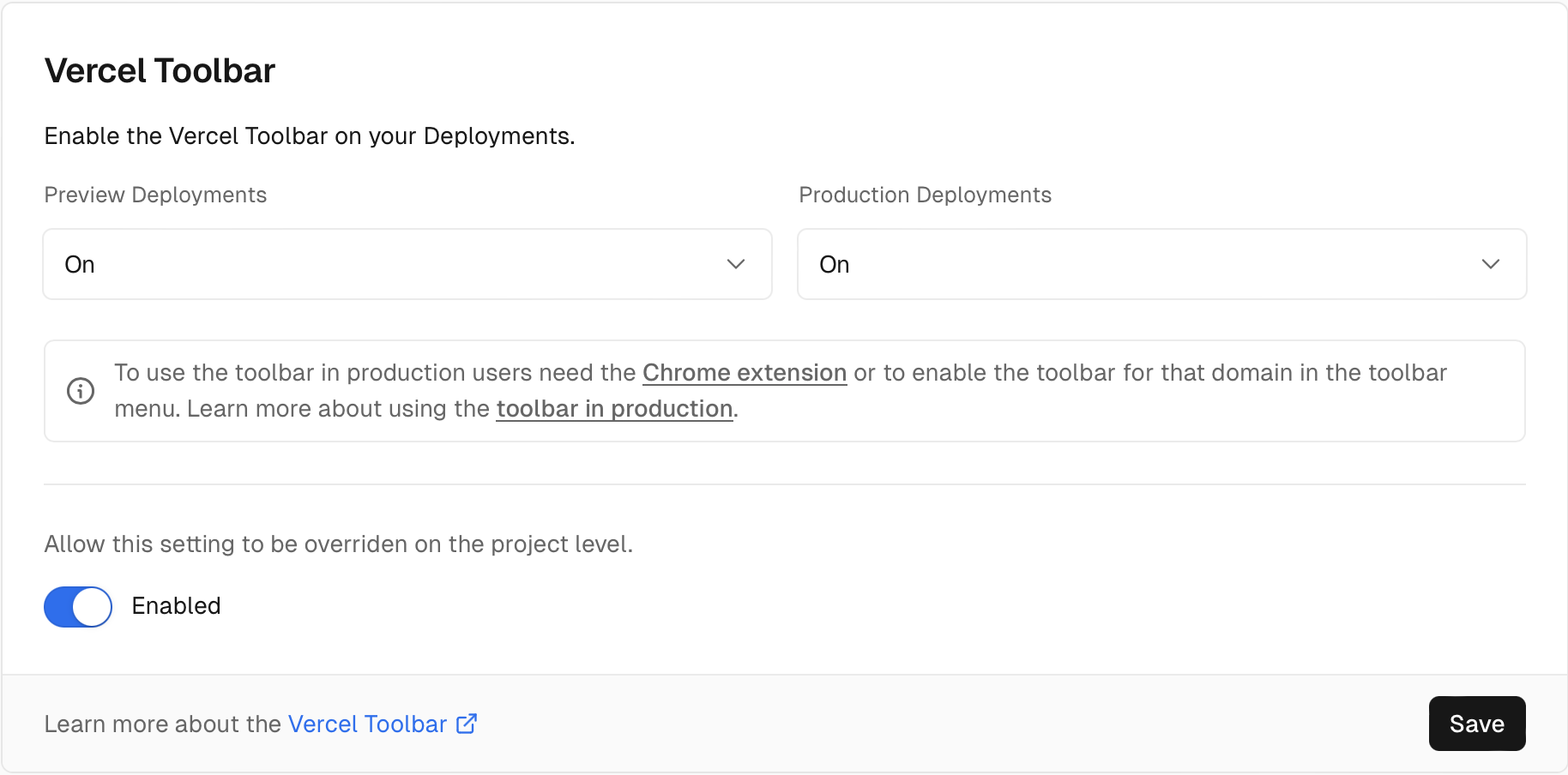
Alternatively to using the package, you can enable access to the Vercel Toolbar for your production environment at the team or project level. Once enabled, team members can access the toolbar using the [Vercel Browser Extension](/docs/vercel-toolbar/browser-extension) or by [enabling it in the toolbar menu](#accessing-the-toolbar-using-the-toolbar-menu).
1. Navigate to [your Vercel dashboard](https://vercel.com/d?to=%2Fdashboard\&title=Open+Dashboard) and make sure that you have selected your team from the team switcher. To manage the toolbar at the project level, ensure that you have selected the project.
2. From your [dashboard](https://vercel.com/d?to=%2Fdashboard\&title=Open+Dashboard), open **Settings** in the sidebar.
3. In the **General** section, find **Vercel Toolbar**.
4. Under each environment (**Preview** and **Production**), select either **On** or **Off** from the dropdown to determine the visibility of the Vercel Toolbar for that environment.
5. Once set at the team level, you can optionally choose to allow the setting to be overridden at the project level.
### Disabling the toolbar
If you have noticed that the toolbar is showing up for team members on your production sites, you can disable it at either the team or project level:
1. Navigate to [your Vercel dashboard](https://vercel.com/d?to=%2Fdashboard\&title=Open+Dashboard) and make sure that you have selected your team from the team switcher. To manage the toolbar at the project level, ensure that you have selected the project.
2. From your [dashboard](https://vercel.com/d?to=%2Fdashboard\&title=Open+Dashboard), open **Settings** in the sidebar.
3. In the **General** section, find **Vercel Toolbar**.
4. Under **Production** select **Off** from the dropdown.
## Acessing the toolbar using the Vercel dashboard
You can send team members and users a production deployment with the Vercel Toolbar included from the dashboard. To do so:
1. From your dashboard, go to your project and open **Projects** in the sidebar. Alternatively, you can also use the deployment overview page.
2. Click the dropdown on the **Visit** button and select **Visit with Toolbar**. This will take you to your production deployment with the toolbar showing and active.
This will not show for users who have the browser extension installed, as the extension will already show the toolbar whenever you visit your production deployment unless it is disabled in team or project settings.
## Accessing the toolbar using the Browser extension
Provided [the Vercel toolbar is enabled](/docs/vercel-toolbar/managing-toolbar#enable-or-disable-the-toolbar-project-wide) for your project, any team member can use the Vercel Toolbar in your production environment by installing the [Vercel Browser Extension](/docs/vercel-toolbar/browser-extension). The extension allows you to access the toolbar on any website hosted on Vercel that your team(s) own:
1. Install the [Vercel Browser Extension](/docs/vercel-toolbar/browser-extension).
2. Ensure that you are logged in to your Vercel account on vercel.com. You must be signed in for the extension to know which domains you own.
3. Ensure that you have deployed to production. Older deployments do not support injection through the browser extension.
4. Ensure that any team members that need access to the toolbar in production follow these steps to install the domain.
## Accessing the toolbar using the toolbar menu
Provided [the Vercel toolbar is enabled](/docs/vercel-toolbar/managing-toolbar#enable-or-disable-the-toolbar-project-wide) for your project, you can enable the toolbar on production environments from the toolbar menu:
1. Open a preview deployment of your project.
2. Select the menu icon in the toolbar.
3. Scroll down to **Enable Vercel Toolbar in Production** and select it.
4. Choose the domain you want to enable the toolbar on.
---
[View full sitemap](/docs/sitemap)