---
title: "Nuxt AI-powered Notion-like WYSIWYG editor"
description: "Notion-like WYSIWYG editor with AI-powered completions (AI Gateway) and real-time collaboration in Vue & Nuxt."
url: "https://vercel.com/templates/nuxt/nuxt-ai-editor"
links:
repository: "https://github.com/nuxt-ui-templates/editor"
demo: "https://editor-template.nuxt.dev/"
deploy: "https://vercel.com/new/clone?demo-title=Nuxt+AI-powered+Notion-like+WYSIWYG+editor&demo-description=Notion-like+WYSIWYG+editor+with+AI-powered+completions+%28AI+Gateway%29+and+real-time+collaboration+in+Vue+%26+Nuxt.&demo-url=https%3A%2F%2Feditor-template.nuxt.dev%2F&demo-image=%2F%2Fimages.ctfassets.net%2Fe5382hct74si%2F2JYEQBdJFmMb9niUVb3tJb%2F4960f4be92372f1f9a5f7253bd518e15%2Fnuxt-editor-light.png&project-name=Nuxt+AI-powered+Notion-like+WYSIWYG+editor&repository-name=nuxt-ai-editor&repository-url=https%3A%2F%2Fgithub.com%2Fnuxt-ui-templates%2Feditor&from=templates&skippable-integrations=1&envDescription=A+32+char+%28min%29+secret+for+the+session+password%2C+a+GitHub+OAuth+credentials+and+make+sure+to+enable+AI+Gateway.&stores=%5B%7B%22type%22%3A%22integration%22%2C%22protocol%22%3A%22storage%22%2C%22productSlug%22%3A%22neon%22%2C%22integrationSlug%22%3A%22neon%22%7D%5D&root-directories=List+of+directory+paths+for+the+directories+to+clone+into+projects&project-names=Comma+separated+list+of+project+names%2Cto+match+the+root-directories"
---
# Nuxt AI-powered Notion-like WYSIWYG editor
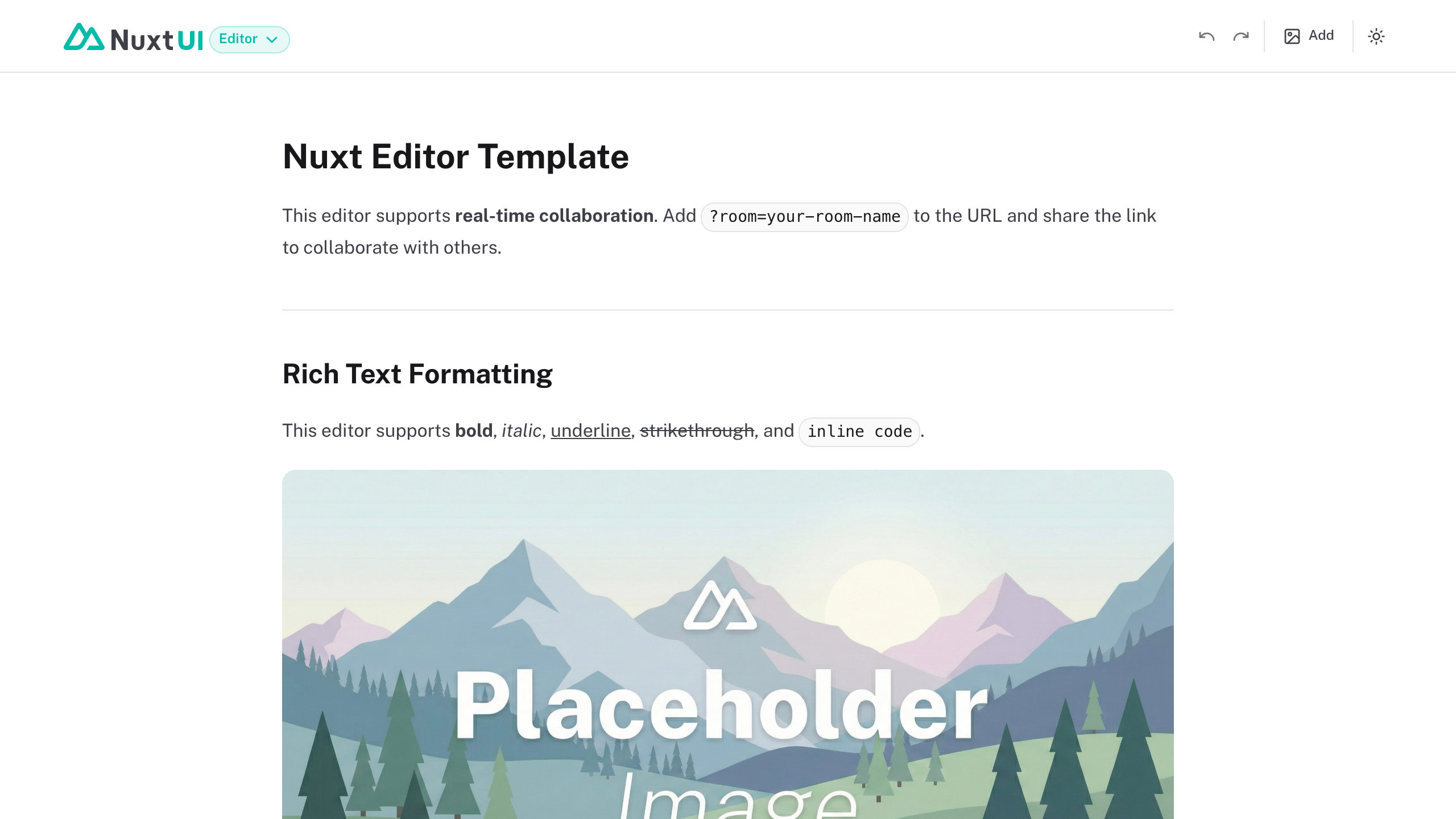
Notion-like WYSIWYG editor with AI-powered completions (AI Gateway) and real-time collaboration in Vue & Nuxt.
# Nuxt Editor Template
[](https://ui.nuxt.com)
Notion-like WYSIWYG editor with AI-powered completions and real-time collaboration in Vue & Nuxt. Built with [Nuxt UI](https://ui.nuxt.com) and [TipTap](https://tiptap.dev), showcasing the powerful [`Editor`](https://ui.nuxt.com/docs/components/editor) component with advanced editing capabilities.
- [Live demo](https://editor-template.nuxt.dev/)
- [Documentation](https://ui.nuxt.com/docs/getting-started/installation/nuxt)
## Features
- **Rich Text Editing** - Full formatting support with headings, lists, blockquotes, and code blocks
- **Tables** - Insert and edit tables with row/column controls and cell selection
- **Bubble & Fixed Toolbars** - Contextual toolbars that adapt to your selection
- **Drag Handle** - Easily reorder, duplicate, or delete content blocks
- **Slash Commands** - Type `/` to access quick insertion commands
- **Image Upload** - Custom image upload node powered by [NuxtHub](https://hub.nuxt.com/docs/blob) with [Vercel Blob](https://vercel.com/docs/vercel-blob)
- **Mentions** - `@mention` support with user suggestions
- **Emoji Picker** - Full GitHub emoji set with `:emoji:` syntax
- **Markdown Support** - Content type set to markdown for easy serialization
- **AI-powered Features** - Inline completions and text transformations powered by [Vercel AI SDK](https://ai-sdk.dev/)
- **Real-time Collaboration** - Optional collaborative editing powered by [PartyKit](https://partykit.io)
## Quick Start
```bash [Terminal]
npm create nuxt@latest -- -t ui/editor
```
## Deploy your own
[](https://vercel.com/new/clone?repository-name=editor&repository-url=https%3A%2F%2Fgithub.com%2Fnuxt-ui-templates%2Feditor&demo-image=https%3A%2F%2Fui.nuxt.com%2Fassets%2Ftemplates%2Fnuxt%2Feditor-dark.png&demo-url=https%3A%2F%2Feditor-template.nuxt.dev%2F&demo-title=Nuxt%20Editor%20Template&demo-description=Notion-like%20WYSIWYG%20editor%20with%20AI-powered%20completions%20and%20real-time%20collaboration%20in%20Vue%20%26%20Nuxt.&env=NUXT_PUBLIC_PARTYKIT_HOST&envDescription=PartyKit%20host%20URL%20for%20real-time%20collaboration%20(optional)&envLink=https%3A%2F%2Fdocs.partykit.io%2Fquickstart%2F)
## Setup
Make sure to install the dependencies:
```bash
pnpm install
```
### AI Integration (Optional)
This template includes AI-powered writing assistance using the [Vercel AI SDK](https://ai-sdk.dev/) and its [`useCompletion`](https://ai-sdk.dev/docs/reference/ai-sdk-ui/use-completion) composable for streaming text generation with support for multiple providers through [Vercel AI Gateway](https://vercel.com/docs/ai-gateway). When deployed on Vercel, the AI Gateway is configured automatically.
**AI Features:**
- **Inline Completions** - Trigger AI suggestions with `⌘J`, accept with `Tab`
- **Continue Writing** - Extend your content from the cursor position
- **Fix Spelling & Grammar** - Automatically correct selected text
- **Extend/Reduce Text** - Make selected content longer or shorter
- **Simplify** - Rewrite complex text in simpler terms
- **Summarize** - Generate a summary of selected content
- **Translate** - Translate selected text to English, French, Spanish, or German
For local development, set your API key in `.env`:
```bash
AI_GATEWAY_API_KEY=
```
> [!TIP]
> With [Vercel AI Gateway](https://vercel.com/docs/ai-gateway), you don't need individual API keys for OpenAI, Anthropic, etc. It provides a unified API to access hundreds of models through a single endpoint with automatic load balancing, fallbacks, and spend monitoring.
### Blob Storage (Optional)
This template uses [NuxtHub Blob](https://hub.nuxt.com/docs/blob) for image uploads, which supports multiple storage drivers:
- **Local filesystem** (default for development, stored in `.data/blob`)
- **[Vercel Blob](https://vercel.com/docs/vercel-blob)** (auto-configured when deployed to Vercel)
- **[Cloudflare R2](https://hub.nuxt.com/docs/blob#set-a-driver)** (when deployed to Cloudflare)
- **[Amazon S3](https://hub.nuxt.com/docs/blob#set-a-driver)** (with manual configuration)
For **Vercel Blob**, assign a Blob Store to your project from the Vercel dashboard (Project → Storage), then set the token for local development:
```bash
BLOB_READ_WRITE_TOKEN=
```
> [!NOTE]
> See the [NuxtHub Blob documentation](https://hub.nuxt.com/docs/blob#set-a-driver) for configuring other storage drivers.
### Collaboration (Optional)
This template includes optional real-time collaboration powered by [Y.js](https://yjs.dev), a CRDT framework for building collaborative applications. This example uses [PartyKit](https://partykit.io) as the Y.js provider, but you can swap it for alternatives like [Liveblocks](https://liveblocks.io/) or [Tiptap Collaboration](https://tiptap.dev/product/collaboration).
To enable collaboration with PartyKit:
1. Create and deploy a PartyKit server following the [PartyKit Quickstart](https://docs.partykit.io/quickstart/):
```bash
npm create partykit@latest
npx partykit deploy
```
2. Set your PartyKit host in `.env`:
```bash
NUXT_PUBLIC_PARTYKIT_HOST=your-project.username.partykit.dev
```
3. Add `?room=your-room-name` to the URL to collaborate. All users with the same room name will edit together in real-time.
> Without the environment variable or `?room=` parameter, the editor works standalone without collaboration.
## Development Server
Start the development server on `http://localhost:3000`:
```bash
pnpm dev
```
## Production
Build the application for production:
```bash
pnpm build
```
Locally preview production build:
```bash
pnpm preview
```
Check out the [deployment documentation](https://nuxt.com/docs/getting-started/deployment) for more information.
## Renovate integration
Install [Renovate GitHub app](https://github.com/apps/renovate/installations/select_target) on your repository and you are good to go.
## Related Templates
### [Nuxt AI Chatbot](https://vercel.com/templates/nuxt/nuxt-ai-chatbot)
An AI chatbot template to build your own chatbot powered by Nuxt MDC and Vercel AI SDK.
### [Docus](https://vercel.com/templates/nuxt/docus)
Markdown-based documentation starter with Nuxt and Vue components.
### [Novel – AI-powered Notion-style editor](https://vercel.com/templates/next.js/novel)
A Notion-style WYSYWIG editor with AI-powered autocompletions, built with Tiptap, OpenAI, and Vercel AI SDK.
---
## Additional documentation
The [Vercel Knowledge Base](https://vercel.com/kb) contains guides and answers to common questions about Vercel, including deployment, framework configuration, domains, caching, and troubleshooting.