
Vercel Flags now supports timestamp attributes, so you can target entities by date and time.
Use timestamp attributes to show a campaign page only between two dates, run a Black Friday promotion, or target users who registered before a cutoff.
Copy link to headingConfigure a timestamp attribute
You can configure timestamp attributes in the dashboard or via the CLI.
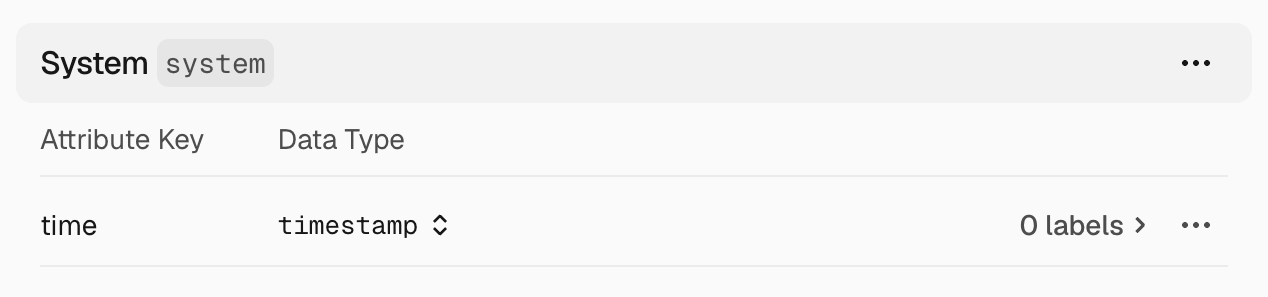
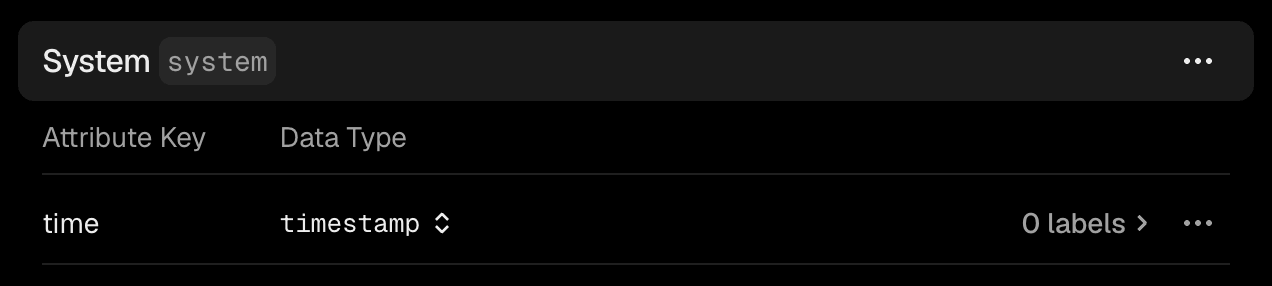
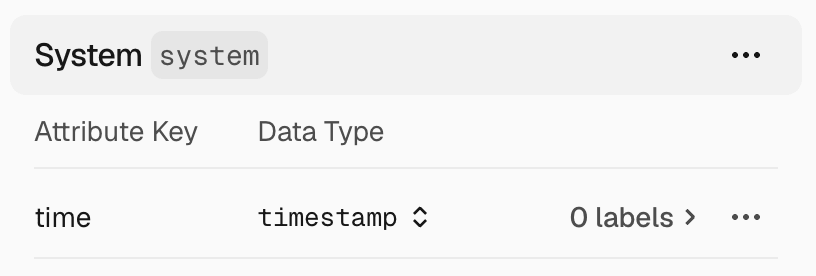
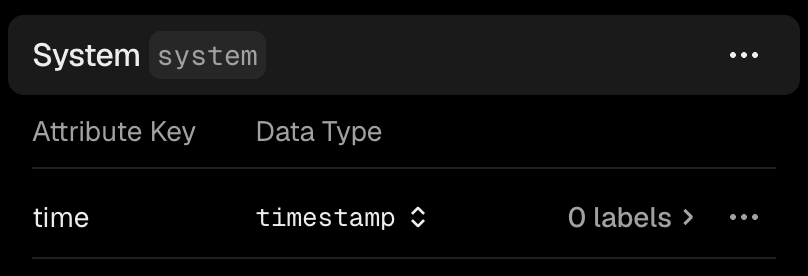
In the Vercel dashboard, open Flags, select Entities, and create or select an entity. Add an attribute and set its data type to timestamp.
Or define the attribute with the CLI:
# On a new entityvercel flags entities create system --label System \  --attribute time:timestamp
# On an existing entityvercel flags entities update system --add-attribute time:timestamp
Define a timestamp attribute with the Vercel CLI.
Whether you configure the attribute in the dashboard or CLI, your application must provide its value when evaluating a flag. The entity and attribute names must match your configuration, and the value must be a Unix epoch timestamp in milliseconds.
This Flags SDK example passes the current time as system.time. Date.now() returns the required value in milliseconds. Keeping it inside dedupe() ensures that every flag evaluated during the same request uses the same time:
import { dedupe, flag } from 'flags/next';import { vercelAdapter } from '@flags-sdk/vercel';
type Entities = { system: { time: number; };};
const identify = dedupe(async (): Promise<Entities> => ({ system: { time: Date.now(), },}));
export const promotion = flag<boolean, Entities>({ key: 'promotion', adapter: vercelAdapter(), identify,});Pass the current time as a timestamp attribute when evaluating a flag.
Copy link to headingAdd a targeting rule
In the dashboard, open the flag and add a targeting rule using the timestamp attribute. The rule compares the value from your application with a date and time you choose.
Rules support is after, is at or after, is before, and is at or before. The date and time picker uses your local timezone.
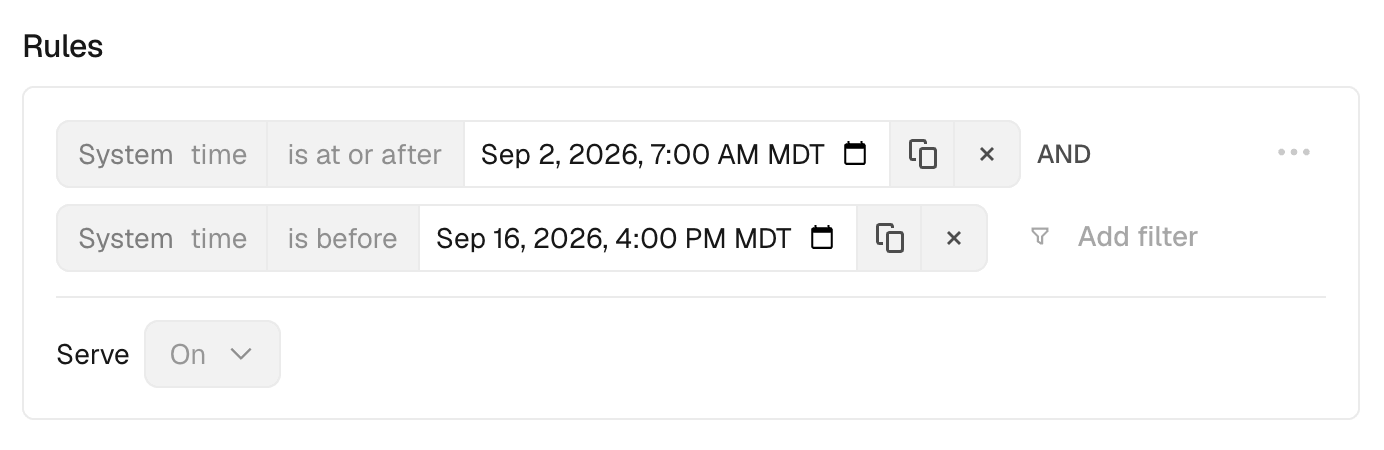
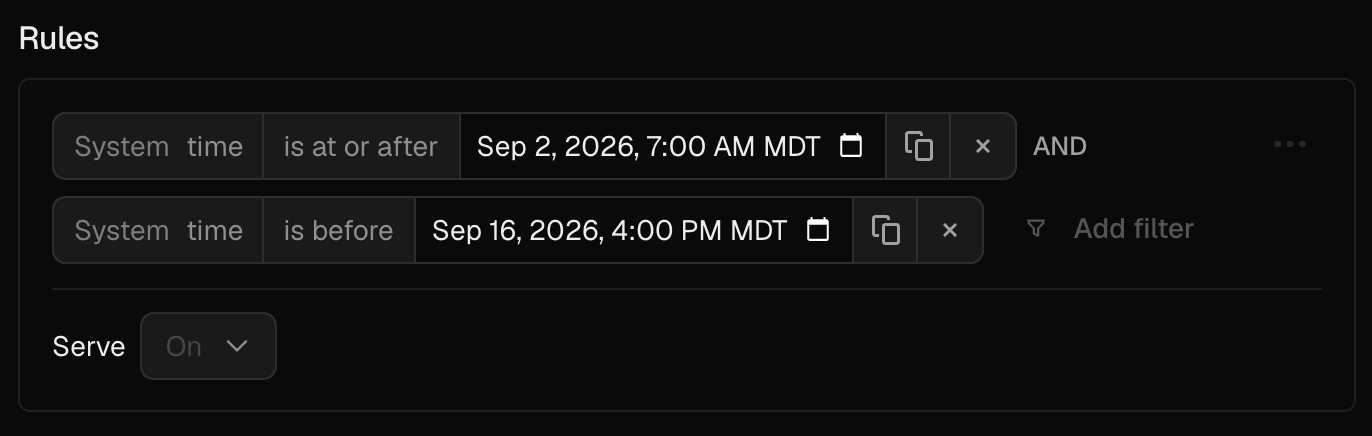
To add a time-based targeting rule with the CLI, use after, at-or-after, before, or at-or-before:
vercel flags rules add promotion --environment production \ --condition system.time:at-or-after:2026-09-02T13:00:00Z \ --condition system.time:before:2026-09-16T22:00:00Z \ --variant onAdd a date range to a flag with the Vercel CLI.
Learn how to provide entities in code and release a flag at a specific time, or read the Flags documentation.