Password Protection
Password Protection is available on Enterprise and Pro plans
Password Protection requires visitors to enter a pre-defined password before they can access your deployment. You can set the desired password from your project settings when enabling the feature, and update it any time.
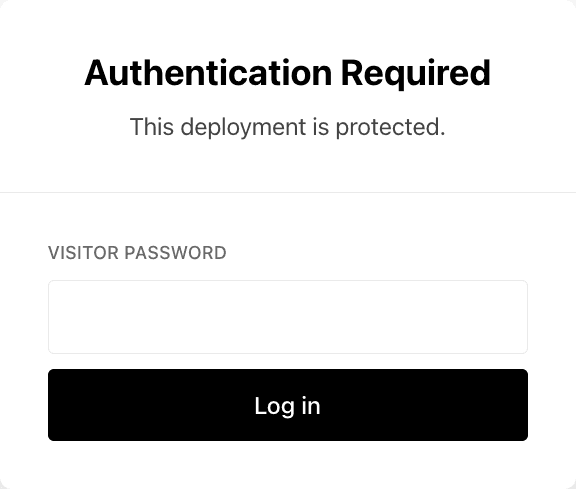
Password Protection pricing depends on your plan and when your team started using the feature:
| Plan or billing model | Price | Coverage |
|---|---|---|
| Hobby | Not available | Upgrade to Pro to enable Password Protection |
| Pro | $20 per month per protected project | The project where you enable Password Protection |
| Enterprise | Included | Every project through Team Level Password Protection |
| Existing Pro teams with the legacy Advanced Deployment Protection package | $150 per month per team | Every project through Team Level Password Protection |
For project-priced Pro teams, Vercel adds the charge when you enable Password Protection for a project. Disabling Password Protection stops future charges for that project. The project's remaining Deployment Protection settings determine who can access its deployments.
See Usage & Pricing for Deployment Protection for the full feature and plan comparison.
The table below outlines key considerations and security implications when using Password Protection for your deployments on Vercel.
| Consideration | Description |
|---|---|
| Environment Configuration | Can be enabled for different environments. See Understanding Deployment Protection by environment |
| Compatibility | Compatible with Vercel Authentication and Trusted IPs |
| Bypass Methods | Can be bypassed using Shareable Links and Protection bypass for Automation, or by callers listed in Trusted Sources |
| Password Persistence | Users only need to enter the password once per deployment, or when the password changes, due to cookie set by the feature being invalidated on password change |
| Password Changes | Users must re-enter a new password if you change the existing one |
| Disabling Protection | All existing deployments become unprotected if you disable the feature |
| Token Scope | JWT tokens set as cookies are valid only for the URL they were set for and can't be reused for different URLs, even if those URLs point to the same deployment |
You can manage Password Protection through the dashboard, API, or Terraform.
From your Vercel dashboard:
- Select the project you want to enable Password Protection for
- Go to Deployment Protection in the sidebar
From the Password Protection section:
- Use the toggle to enable the feature
- Select the deployment environment you want to protect
- Enter a password of your choice
- Finally, select Save
All your existing and future deployments will be protected with a password for the project. The next time you access a deployment, you'll need to enter the password. After you enter it, a cookie is set in your browser for that deployment URL so you don't need to enter the password again.
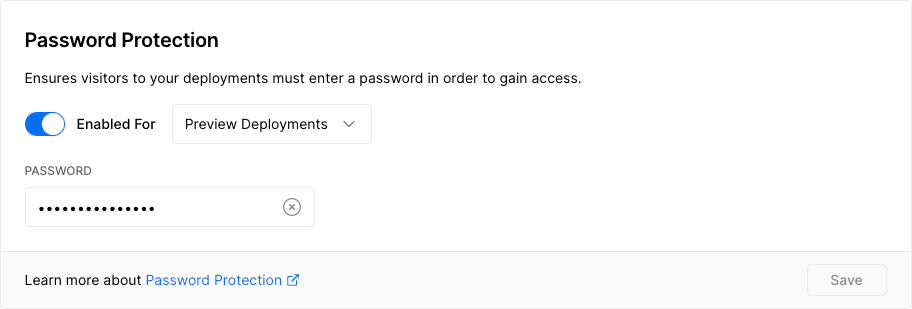
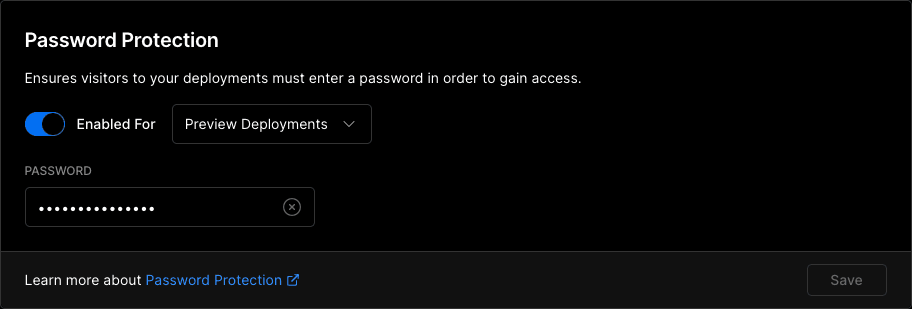
Enabling Password Protection.
You can manage Password Protection using the Vercel API endpoint to update an existing project with the following body.
| Parameter | Type | Description |
|---|---|---|
deploymentType | string | The scope of protection. Accepted values are all_except_custom_domains (Standard Protection), prod_deployment_urls_and_all_previews (legacy Standard Protection), all (All Deployments), or preview (legacy Pre-Production Deployments) |
password | string | The password visitors must enter |
To enable or update Password Protection, send the passwordProtection object:
{
  "passwordProtection": {
    "deploymentType": "all_except_custom_domains",
    "password": "your_password_here"
  }
}
To disable Password Protection, set passwordProtection to null:
{
  "passwordProtection": null
}You can configure Password Protection using password_protection in the vercel_project data source in the Vercel Terraform Provider.
Password Protection checks every request before it reaches your application, including requests from CI jobs, end-to-end tests, and webhooks. Those requests can't enter a password, so they receive a 401 response as soon as you enable protection. Set up Protection Bypass for Automation when you enable Password Protection, and send the secret in the x-vercel-protection-bypass header.
For test runners, add the header to every request and set x-vercel-set-bypass-cookie to true so in-browser navigation doesn't hit the password prompt. See the Playwright and Cypress configurations.
To check the bypass, request a protected deployment with the secret. A 200 response means the bypass works:
curl -I -H "x-vercel-protection-bypass: $VERCEL_AUTOMATION_BYPASS_SECRET" \
https://your-deployment.vercel.appIf requests that worked before you enabled Password Protection now return 401, find the matching symptom:
| Symptom | Cause | Fix |
|---|---|---|
Cross-origin requests fail because the OPTIONS preflight returns 401 | Browsers don't send cookies or custom headers with a CORS preflight, so the preflight can't pass protection. | Add the API's path prefix, such as /api, to the OPTIONS Allowlist. |
A fetch from your own server code to the deployment's URL returns 401 | The server-side request doesn't include the visitor's authentication cookie. | Use the incoming request's origin and forward its cookie header. In the browser, use relative paths. See How to migrate to Standard Protection. |
Webhooks from services such as Stripe or Slack return 401, or URL verification fails | The service can't enter a password or send the authentication cookie. | Send the bypass secret in the x-vercel-protection-bypass header. If the service accepts only a URL, add the secret as a query parameter. |
Requests to an API on a different subdomain return 401 after you enter the password | The authentication cookie is valid only for the URL where you entered the password. | Call the API on the same origin with relative paths, or send the bypass header from automated callers. |
Tests return 401 after you regenerate a bypass secret | Existing deployments still use the previous secret value. | Redeploy so the deployment uses the new secret. |
Open your project's Deployment Protection settings. In the Password Protection section, turn on Require Password, choose which deployments to protect, enter a password, and select Save. If your Pro team pays per project, confirm the $20 monthly charge. Password Protection requires a Pro or Enterprise plan. You can also configure it with the Vercel REST API or Terraform.
On the Pro plan, Password Protection costs $20 per month for each project where you enable it. Enterprise plans include it for every project at no extra charge. Password Protection isn't available on the Hobby plan. For a free alternative, use Vercel Authentication, which every plan includes. It asks visitors to log in with a Vercel account that has access, instead of entering a password.
Some existing Pro teams have the legacy Advanced Deployment Protection package. They pay $150 per month for Password Protection on every project. See Password Protection pricing and Usage & Pricing for Deployment Protection for details.
Select All Deployments as the protection scope when you configure Password Protection. The default scope, Standard Protection, leaves your production domains public. Production domains include custom domains such as example.com and the .vercel.app domains assigned to production. With All Deployments, visitors need the password for every preview and production URL, unless they use a bypass method.
Yes. Create a Shareable Link from the deployment's Share menu by selecting Anyone with the link. Anyone who opens that link can view the deployment without entering the password. To revoke access, switch the option back to Only people with access. For CI jobs, tests, and webhooks, use Protection Bypass for Automation instead.
Open your project's Deployment Protection settings. Turn off Require Password and select Save. Type disable password protection to confirm, then select Disable Password Protection. To disable it with the API, set passwordProtection to null as shown in Configure Password Protection with the API. All existing deployments become unprotected. If your Pro team pays per project, future charges for that project stop.
Was this helpful?